Logo
Logo
  • Documentation
  • Introduction
  • Quick Start Guide
  • Getting Started
  • Create a Client
  • Create a Patient
  • Create a Patient
    Visit & Payment
  • Email a Receipt
  • Setup & Customizations
  • Change Invoice / Receipt Display Settings
  • Create or Edit Email Templates
  • Edit Outgoing Email Settings
  • Clients
  • Create a Client
  • View a List of All Clients
  • View a List of All Clients
    with Outstanding Balance
  • Accept a Payment for
    an Outstanding Balance
  • Accept a Pre-Payment
    for a Client
  • Print / Email a Client Statement
  • View All Follow-Ups
    for a Client
  • Send an Email
    to All / Many Clients
  • Patients
  • Create a Patient
  • View a List of All Patients
  • View all Patient Visits
    of a Patient
  • View all Follow-Ups
    for a Patient
  • Patient Visits
  • Create a Patient
    Visit & Payment
  • Create a Patient Visit
    of Historical Records
  • Add / Remove / Edit
    Items on a Visit
  • Bundle Multiple Patient
    Visits into a single
    Receipt/Invoice for a Client
  • Print a Referral Report
    from a Patient Visit
  • Email a Referral Report
    from a Patient Visit

Create or Edit Email Templates

From any “Send an Email” page in VetBlue (i.e. you click Email Invc from the Patient Visit detail page) you’ll notice a button named Select Template. If you click on this button a list of email templates displays in a new window. When you click on a particular template the Subject and Body of your outbound email are populated with text that you’ve defined.

You can customize this list and the content of emails. To create or edit an email template, complete the following steps:

  • 1

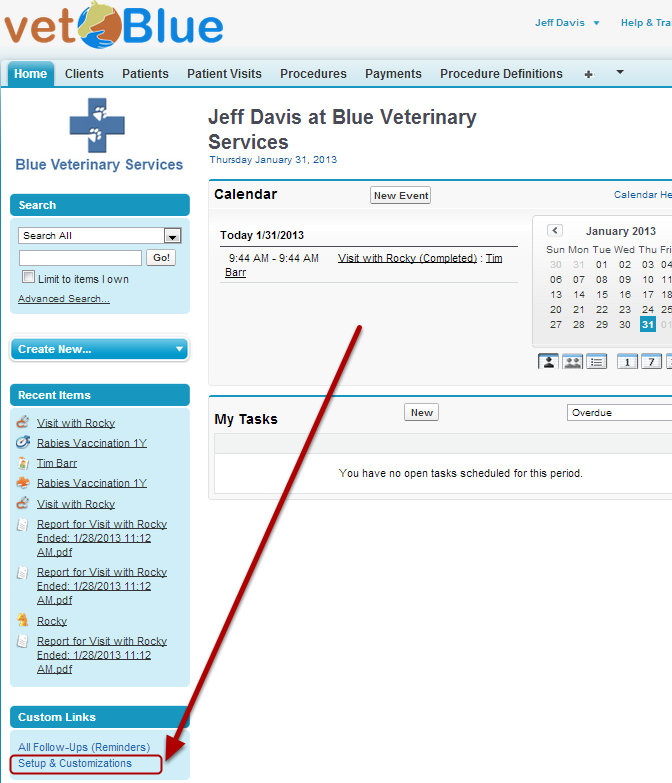
    Click the Setup & Customizations button on the Left Sidebar
  • 2

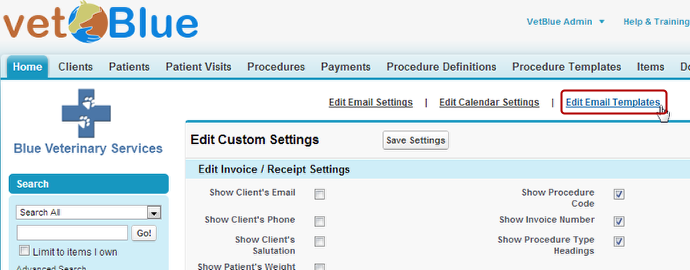
    Click Edit Email Templates

  • 3

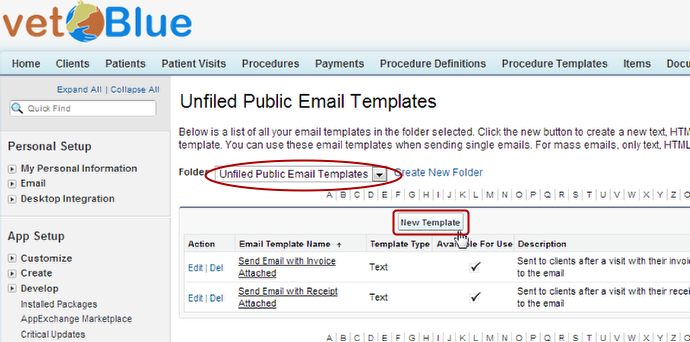
    Either Edit an Existing Template or Click New Template

    Ensure that Unfiled Public Email Templates is selected so that you can see and share templates with the other users in your practice.
  • 4

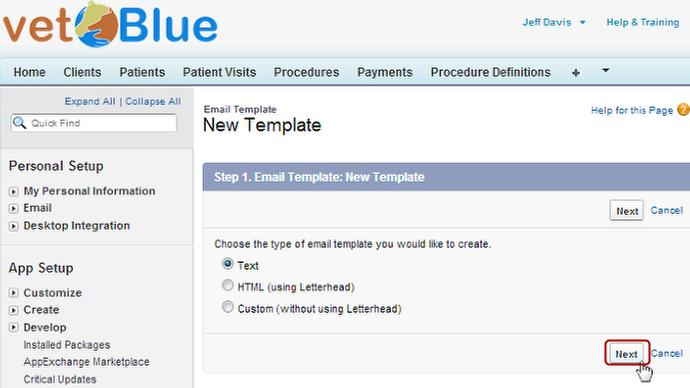
    Select a Type of Template and click Next
  • 5

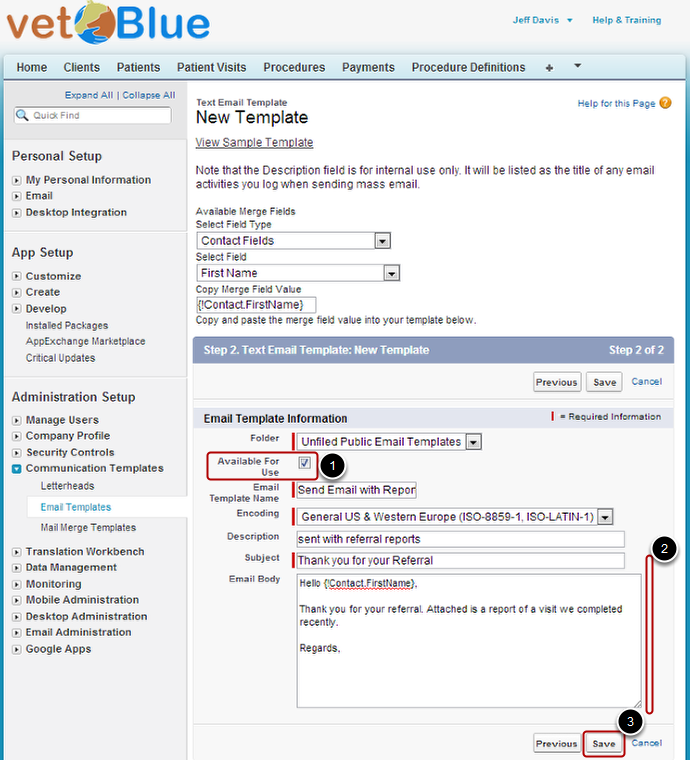
    Enter Information about the Template and click Save

    Give your template a title, be sure to click Available for Use so that it appears on your list.

    Enter the subject and body that should populate when you select this template. Click Save when you’re done editing.