Logo
Logo
  • Documentation
  • Introduction
  • Quick Start Guide
  • Getting Started
  • Create a Client
  • Create a Patient
  • Create a Patient
    Visit & Payment
  • Email a Receipt
  • Setup & Customizations
  • Change Invoice / Receipt Display Settings
  • Create or Edit Email Templates
  • Edit Outgoing Email Settings
  • Clients
  • Create a Client
  • View a List of All Clients
  • View a List of All Clients
    with Outstanding Balance
  • Accept a Payment for
    an Outstanding Balance
  • Accept a Pre-Payment
    for a Client
  • Print / Email a Client Statement
  • View All Follow-Ups
    for a Client
  • Send an Email
    to All / Many Clients
  • Patients
  • Create a Patient
  • View a List of All Patients
  • View all Patient Visits
    of a Patient
  • View all Follow-Ups
    for a Patient
  • Patient Visits
  • Create a Patient
    Visit & Payment
  • Create a Patient Visit
    of Historical Records
  • Add / Remove / Edit
    Items on a Visit
  • Bundle Multiple Patient
    Visits into a single
    Receipt/Invoice for a Client
  • Print a Referral Report
    from a Patient Visit
  • Email a Referral Report
    from a Patient Visit

Print / Email a Client Statement

To print or email a client statement summarizing all visits and payments, complete the following steps

  • 1

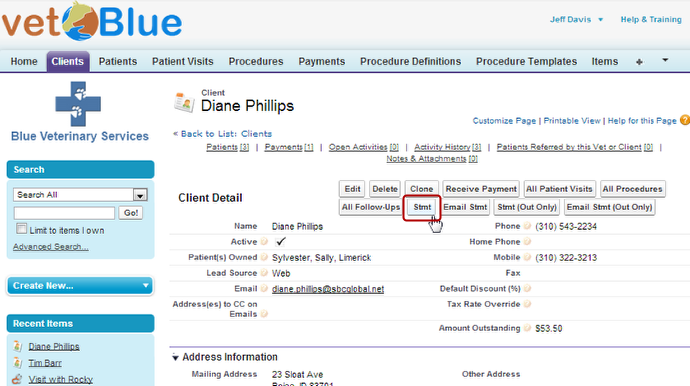
    Navigate to a Client detail page and click the Stmt button
  • 2

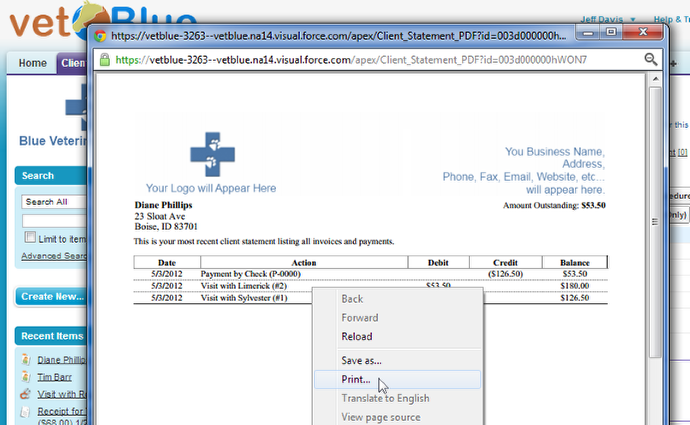
    A PDF of the client statement will appear, right click and select Print
  • 3

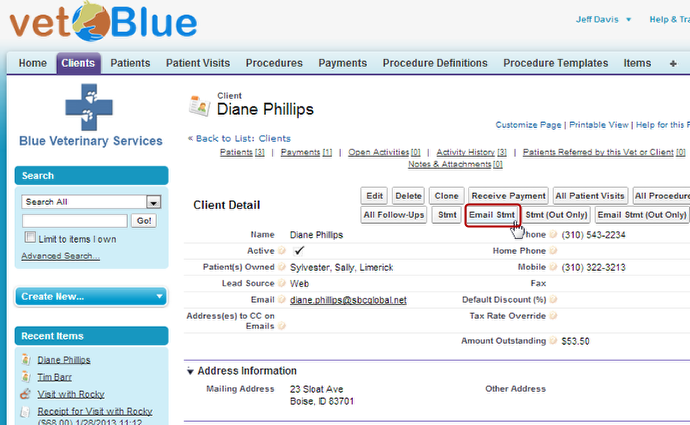
    To Email the Statement, from the Client detail page click on the Email Stmt button
  • 3

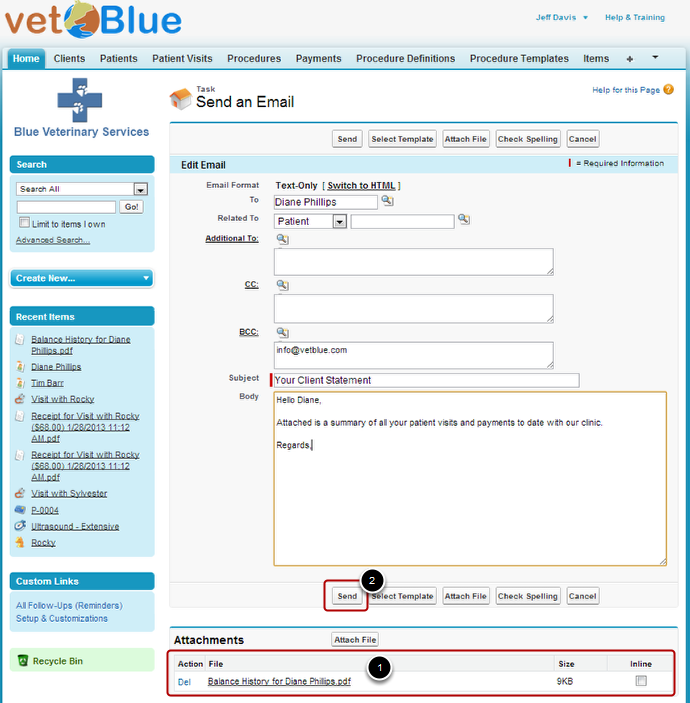
    The Send an Email page appears. Note the Statement is attached at the bottom. Complete the email and click Send