Logo
Logo
  • Documentation
  • Introduction
  • Quick Start Guide
  • Getting Started
  • Create a Client
  • Create a Patient
  • Create a Patient
    Visit & Payment
  • Email a Receipt
  • Setup & Customizations
  • Change Invoice / Receipt Display Settings
  • Create or Edit Email Templates
  • Edit Outgoing Email Settings
  • Clients
  • Create a Client
  • View a List of All Clients
  • View a List of All Clients
    with Outstanding Balance
  • Accept a Payment for
    an Outstanding Balance
  • Accept a Pre-Payment
    for a Client
  • Print / Email a Client Statement
  • View All Follow-Ups
    for a Client
  • Send an Email
    to All / Many Clients
  • Patients
  • Create a Patient
  • View a List of All Patients
  • View all Patient Visits
    of a Patient
  • View all Follow-Ups
    for a Patient
  • Patient Visits
  • Create a Patient
    Visit & Payment
  • Create a Patient Visit
    of Historical Records
  • Add / Remove / Edit
    Items on a Visit
  • Bundle Multiple Patient
    Visits into a single
    Receipt/Invoice for a Client
  • Print a Referral Report
    from a Patient Visit
  • Email a Referral Report
    from a Patient Visit

Create a Patient Visit & Payment

To create a patient visit and receive a payment, complete the following steps

  • 1

    From the Patient detail page, click on New Patient Visit

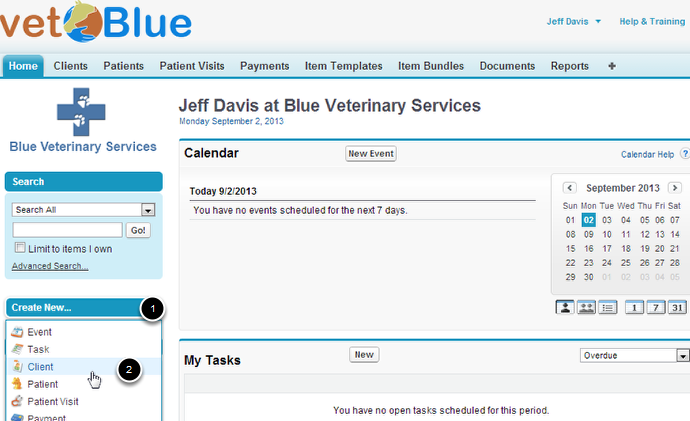
    Note: It is always a good idea to navigate first to the patient and click on New Patient Visit from that screen. Alternatively, you could click on Create New… Patient Visit from the sidebar.
  • 2

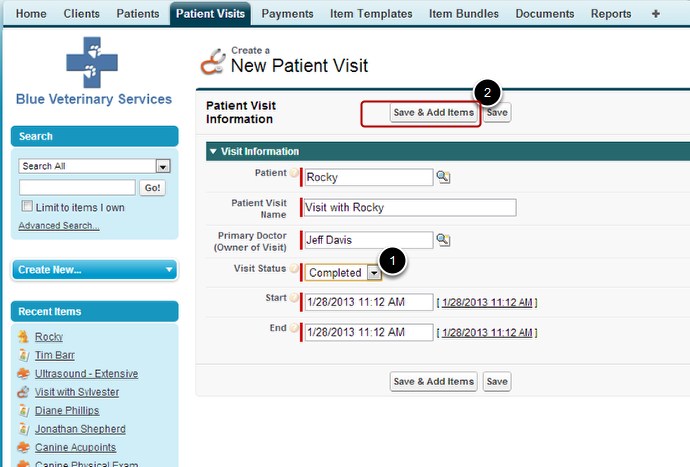
    Enter Schedule Information about the Patient Visit then click Save & Add Items
  • 3

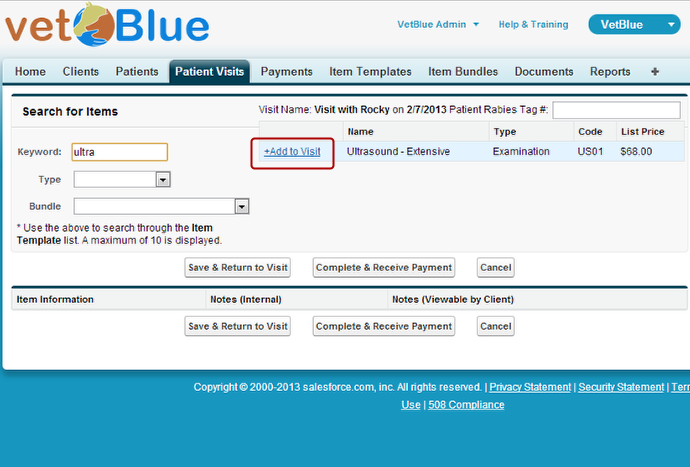
    The Edit All Items page appears

    From this page you search through your item template list (aka price list) and add the items you performed to the patient visit. In this example we enter some letters (“ultra”) and the Ultrasound – Extensive item template appears. We then click +Add to Visit to add this item to this visit.
  • 4

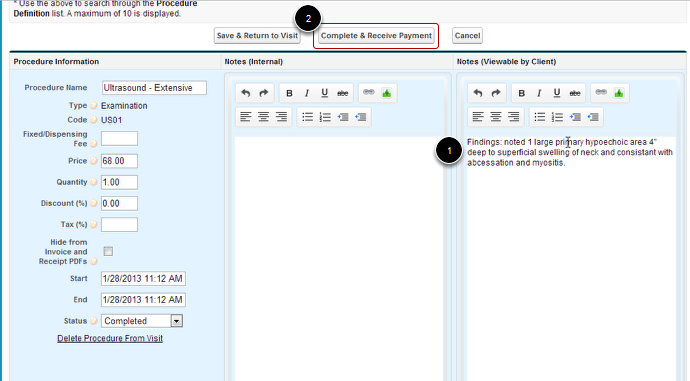
    Add some Medical Record notes the click Complete & Receive Payment

    In this procedure we will enter some findings in the Procedure Notes (Viewable by Client). These notes will appear on the invoices/receipts.
  • 5

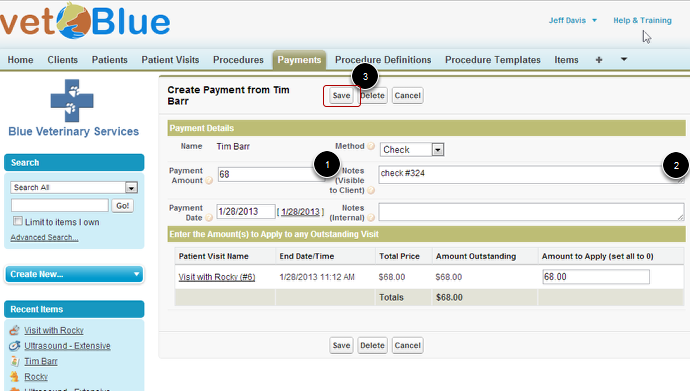
    Enter Payment Information and Click Save